The value of a company database comes less from being able to see the data on screen and more from being able to move that data into your own tools. Filtering a list in Excel, importing new prospects into your CRM, feeding your email tool, or pulling data automatically with your own application... all of these require the data to "flow out". And that's exactly where you meet two core methods: CSV/Excel export from the panel and the REST API.
These two concepts can sound technical, but they're actually very simple. In this guide we'll explain both from scratch, without jargon. Whether you're a sales manager who just wants to download a list in Excel, or a developer who wants to integrate company data into your own software, you'll find the section that speaks to you. By the end, you'll know exactly which one to choose in each situation and how to do both with FreshSignal, step by step.
What Is CSV? File Format and Where to Open It
CSV stands for "Comma-Separated Values". As the name suggests, it's a way of storing table data in the simplest possible plain-text file. Each row represents a record (a company, for example), and the comma-separated pieces within each row represent that record's columns (such as legal name, city, district, sector).
CSV's greatest strength is that it's universal. Almost every spreadsheet program, every CRM and every data tool can read a CSV file. Once you download the file to your computer, you can open it in Microsoft Excel, Google Sheets, Apple Numbers, LibreOffice Calc, as well as the "import" screen of just about every CRM and email marketing tool. In other words, CSV is the common language between different systems.
- It's a simple text file; it needs no special software, and can even be opened in Notepad.
- It's small in size; even tens of thousands of rows transfer quickly.
- It's readable by every system; it's the most portable data format there is.
- When you open it in Excel it automatically lays out into columns and looks like a table.
ℹ️ The difference between CSV and Excel (XLSX)
What Is CSV/Excel Export For?
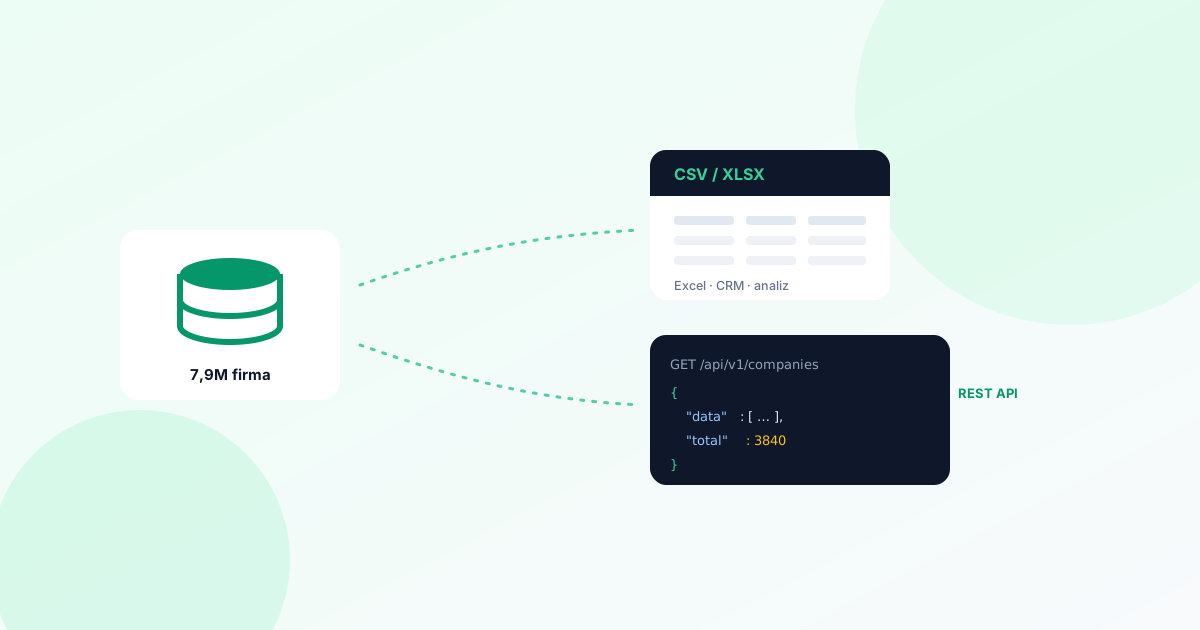
Export means filtering the records in a database, dumping them to a file and downloading it to your computer. In FreshSignal, this means filtering the 7.9-million company database down to only the companies that matter to you and taking them as a CSV or XLSX file. Instead of looking through them one by one on screen, you get your target audience in a single file.
This is especially practical for sales and marketing teams. You set up the filter once, download the file, and from then on use the data however you like in the tool you already know (Excel, CRM). You don't need an internet connection or to log back into the panel; the file is yours.
- Building a target customer list: gathering companies in a specific city, district and sector into a single file.
- Bulk import into your own CRM: bringing new prospects into your system.
- Feeding your email tool: moving filtered companies into your campaign list.
- Analysis and reporting in Excel: pivot tables, charts and segmentation work.
- Distribution to the field/phone team: preparing and sharing region-by-region lists.
How Does Export Work in FreshSignal?
In the FreshSignal panel, the export process consists of four simple steps: first you filter, then you choose your columns, then you download as CSV or XLSX, and finally you use the file in Excel, your CRM or your analysis tool. The diagram below sums up this flow.
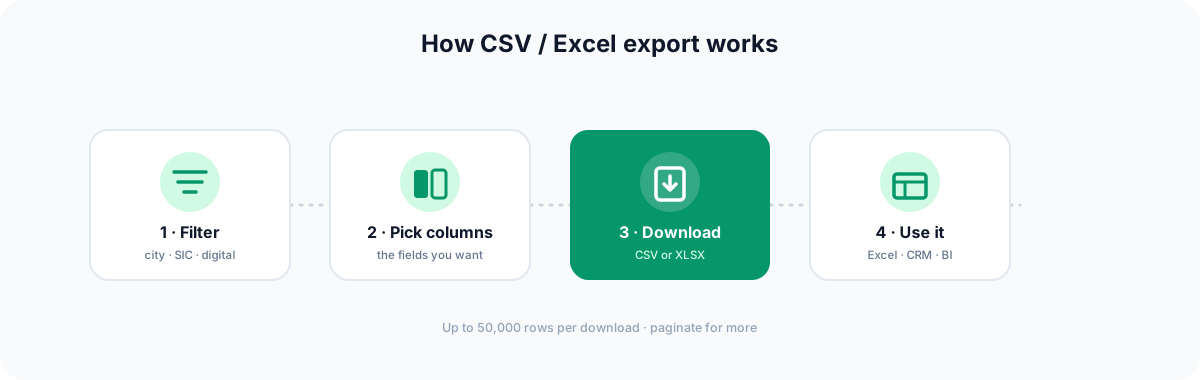
1. Filtering
You go to Company Data → Export in the panel and narrow down the 7.9-million database. The filters you can use are: country (Türkiye or the United Kingdom), city, district, NACE sector code (2, 4 or 6 digits), company type, digital presence (whether there's a website / phone / email), a word in the legal name and a listing date range. By combining these filters, you can define a very sharp target audience.
2. Choosing columns
You decide which information appears in the file. Columns are presented in groups: basic information, address, contact and digital presence. By leaving out columns you don't need, you can keep the file lean and fit for purpose.
3. Choosing a format and downloading
You can download the file as CSV or XLSX (Excel); both are genuine options. A single download gives you at most 50,000 rows (a synchronous download). Don't worry about larger result sets: with the "Download page 2" option you can take the data slice by slice, page by page.
4. Saving and history
You can store the filter you've built under Saved lists, so you don't have to rebuild the filter from scratch every time. In addition, a download history is kept, so you can see which list you took and when.
💡 Is the 50,000-row limit too tight?
What Is a REST API? (Explained for Non-Technical Readers Too)
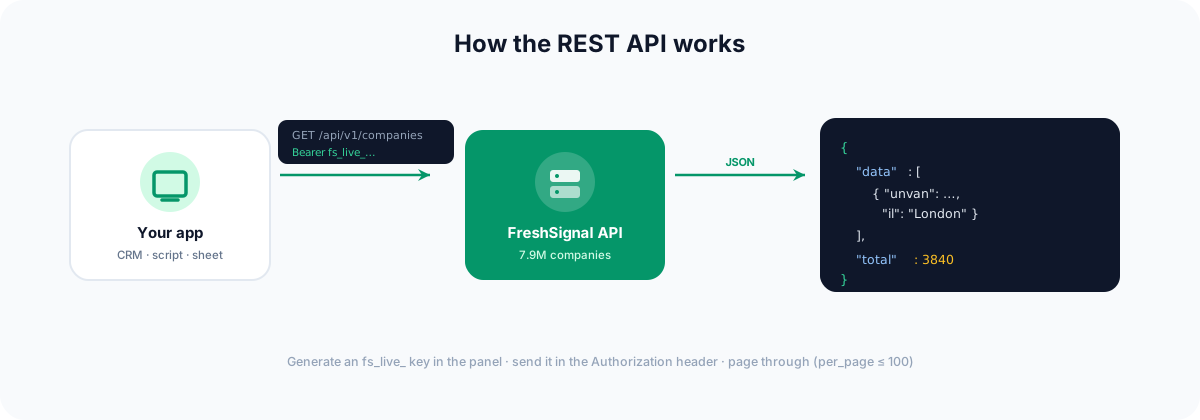
API stands for "Application Programming Interface". Don't let it sound too technical: think of an API as an order window that lets two pieces of software talk to each other. You send a request to the window like "give me the construction companies in London", and the other side returns a tidy answer. A REST API is a common, standard type of this conversation, conducted over the internet using web addresses (URLs).
This conversation has two sides. The message you send is called a request. The message the other side returns is called a response. The response usually comes in a format called JSON; JSON is a text format organised into "key: value" pairs that both humans and programs can read easily. For example, a company appears in JSON as something like "il": "İstanbul".
So how does the other side know the request came from you? This is where the Bearer key comes in. To each request you attach an API key that works like a personal ID card. In FreshSignal this key is in the format fs_live_... and is added to the request's header as Authorization: Bearer fs_live_.... The key identifies you and verifies your authorisation.
ℹ️ Three key concepts, in one sentence
What Is the Company Data API For?
Whereas export is a "download a file in one go" task, the API is for automation and integration. Without a person having to log into the panel and download a file, your software can pull company data on its own in the background. That makes it ideal for repetitive or programmatic work.
- Adding a company search feature to your own application: showing live results when a user picks a city/district/sector.
- Feeding your CRM automatically: pulling newly added companies into your own system at regular intervals.
- Reporting in your internal dashboards: having your own BI tool read company data from the API.
- Enrichment: looking up a company you already have and filling in missing city/district/sector information.
- Regular synchronisation: making periodic (for example weekly) pulls to keep the data up to date.
The main endpoint of the FreshSignal REST API is company search, but it isn't limited to reading. It also offers endpoints for basic CRM operations: you can add and update contacts, and add companies/contacts as members of lists. So the API can be used both to read data and to automate your own outreach flow.
| Endpoint | What it does |
|---|---|
| GET /api/v1/companies | Company search and filtering (read). Returns paginated results. |
| POST /api/v1/crm/contacts | Adds a contact to the CRM or updates an existing contact. |
| POST /api/v1/crm/lists/[id]/members | Adds a member (company/contact) to a list. |
⚠️ The limits of the API
Export or API? When to Use Which?
Both move data out, but they serve different needs. In short: use export for one-off, manual work; use the API for repetitive, automated work. The table below makes your decision easier.
| Criterion | CSV/Excel Export | REST API |
|---|---|---|
| Who uses it | Salesperson, marketer, analyst (no technical knowledge needed) | Developer, technical team |
| How it works | Filter in the panel, download a file | Send a request in code, get a JSON response |
| Best-fit scenario | One-off list, Excel analysis, manual CRM import | Automation, integration, regular sync |
| Output | CSV or XLSX file | JSON data |
| Repeatability | Saved list + re-download | Scheduled/automatic calls |
Most teams use both together: export when they need a quick list or Excel analysis, and the API when they need a permanent connection between systems. One isn't an alternative to the other; they're complementary.
CSV Export and API with 5W1H
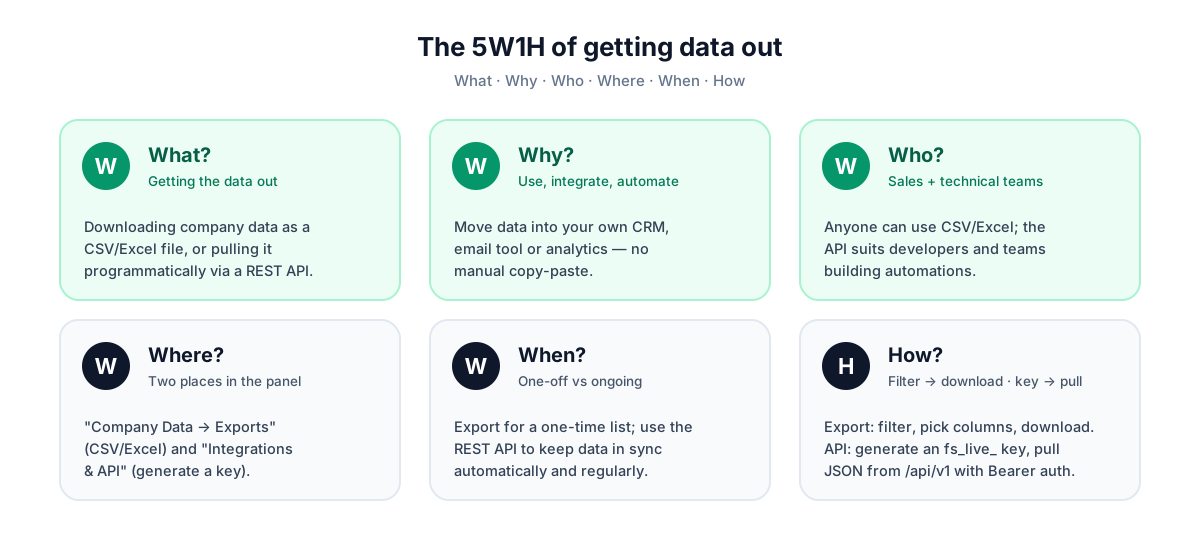
Let's sum the topic up with the classic 5W1H framework; it's both a quick reminder and a chance to see the whole picture at a glance.
What?
CSV export is dumping filtered company data to a file (CSV/XLSX) and downloading it. The REST API is accessing company data through code, over the internet, and getting a JSON response.
Why?
Seeing the data on screen isn't enough; you need to move it into your own tools (Excel, CRM, your own application) so you can use it in your sales, marketing and analysis work.
How?
With export: filter in the panel, choose columns, download CSV/XLSX. With the API: generate a key in the panel, add the Authorization: Bearer header to your request, call the /api/v1/companies endpoint, and process the JSON response.
Where?
Export lives in the panel under Company Data → Export; API key generation is under Integrations & API. The API's base address is https://freshsignal.net.
When?
Use export when you need a one-off list or Excel analysis; use the API when you need repetitive, automated or system-to-system data flow.
Who?
A salesperson or marketer with no technical knowledge can use export; the API is generally used by developers integrating data into their own software.
Good Use Cases
Importing into your own CRM
Filter companies in a specific city, district and NACE sector, download them as CSV, then bulk-upload them from your CRM's "import" screen. If you want a regular flow, you can automate the same task with the API's CRM endpoints (POST /api/v1/crm/contacts).
Feeding your email tool
Filter for companies "with an email" using the digital-presence filter to build your list, then import it into your email marketing tool. That way you start your campaigns with a targeted, clean list.
BI and analysis
Download XLSX and build pivot tables in Excel to examine sector and region distributions; or have your own BI tool pull the data periodically via the API. It's ideal for market size, density and segment analysis.
Keeping data regularly up to date
Use the listing date range filter to take only newly added companies and append them to your existing list. On the API side, you can set up a regular update flow by pulling only records after a certain date with the tarih_baslangic parameter.
Step by Step with FreshSignal: Export
- Go to Company Data → Export in the panel.
- Set up the country, city, district, NACE sector code, company type, digital presence, legal-name keyword and listing date filters.
- Choose the column groups to include in the file (basic information, address, contact, digital presence).
- Choose the format: CSV or XLSX.
- Download. A single download gives at most 50,000 rows; for more, continue with 'Download page 2'.
- If you like, store the filter under Saved lists; the download history is kept automatically.
Step by Step with FreshSignal: Generating an API Key
- Go to the Integrations & API section in the panel.
- Generate a new API key. The key is created in the fs_live_... format.
- The key is shown ONLY once; copy it to a safe place immediately. Only its sha256 digest is stored in the system, and the plain value is never shown again.
- Add the key to the header of your requests as Authorization: Bearer fs_live_...
- You can revoke the key whenever needed; its last-used date is also tracked.
⚠️ The key is shown only once
fs_live_... key you generate appears on screen only once, and only its sha256 digest is kept in the database. Before closing that screen, save the key somewhere safe (a password manager, a server environment variable). If you lose it, you'll have to generate a new one.A Real API Request: curl Example
Below is a real curl example that pulls companies in İstanbul, 50 records per page. Replace the key in the Authorization header with your own fs_live_... key. This request goes to the GET /api/v1/companies endpoint.
curl -X GET \
  "https://freshsignal.net/api/v1/companies?ulke=T%C3%BCrkiye&il=%C4%B0stanbul&nace2=41&page=1&per_page=50" \
-H "Authorization: Bearer fs_live_XXXXXXXXXXXXXXXXXXXX"The main search parameters you can add to the request are: ulke, il, ilce, nace2, nace4, nace6, search, tarih_baslangic, tarih_bitis, page and per_page (at most 100). This way you can apply most of the export filtering logic programmatically too.
What Does the API Response Look Like? (JSON)
If the request above succeeds, you'll get a JSON response like the one below. The response is paginated: the page, per_page and total fields give you the total results and pagination information. The data array contains the basic fields for each company.
{
  "data": [
    {
      "id": 123456,
      "slug": "ornek-insaat-anonim-sirketi",
      "unvan": "Örnek İnşaat Anonim Şirketi",
      "ulke": "Türkiye",
      "il": "İstanbul",
      "ilce": "Kadıköy",
      "nace_kodu": "41.20.01",
      "firma_tipi": "Anonim Şirket",
      "listing_date": "2026-05-14"
    }
  ],
  "page": 1,
  "per_page": 50,
  "total": 4820
}Each company object contains these fields: id, slug, unvan, ulke, il, ilce, nace_kodu, firma_tipi and listing_date. To page through the results you increment the page value and pull the next pages; the total field tells you how many records there are in total, so you can work out how many pages you need to pull.
Security: How to Protect Your Key
Your API key is like a password that grants access to your account. That's why keeping it secret is critical. The simple rules below protect you from most risks.
- Don't share the key with anyone and don't put it in public code repositories (such as GitHub).
- Instead of hard-coding the key directly, store it in a server environment variable.
- Use the key only on the server side; don't leave it visible in browser/client code.
- If you suspect it has leaked, revoke the key from the panel immediately and generate a new one.
- Because the last-used date is tracked, you can spot unexpected access.
💡 Revoke is always within reach
fs_live_... key takes seconds.Pricing and Plan
Both CSV/Excel export and the API key are offered on the paid plans. All paid plans, including Starter ($19), cover these two features. There is no free plan. In other words, downloading a list from the panel and pulling data into your own application via the API are both part of the same paid subscription.
To see which plan suits you, take a look at the pricing page, then start using the export and API sections from the dashboard. To get to know the filtering features more closely, have a look at the company search and filtering guide.
Summary
There are two ways to put company data to work. CSV/Excel export lets you filter and download a file from the panel with no technical knowledge; it's ideal for one-off lists, Excel analysis and manual CRM import. The REST API lets your own software access company data programmatically; it's the right tool for automation, integration and regular sync.
The two aren't alternatives but complements. FreshSignal offers both routes on the paid plans: filtered export (CSV or XLSX, up to 50,000 rows per download) and a REST API protected by an fs_live_... key. Whatever scale you work at, there's a clear way to move the data into your own tools.
To get started, take a look at our guide centre or head straight to the dashboard and download your first list.
What is CSV and where does it open?
CSV is a simple text file containing comma-separated values. It opens in spreadsheet programs such as Microsoft Excel, Google Sheets, Apple Numbers and LibreOffice Calc, and in the import screen of just about every CRM and email tool. Being universal makes it easy to move between different systems.
Should I download CSV or Excel (XLSX)?
If you're going to import the data into another system or want the broadest compatibility, CSV is practical. If you'll be working directly in Excel with colours, formulas or multiple sheets, XLSX is more suitable. FreshSignal offers both formats; choose according to your need.
How many rows can I download at once?
A single synchronous download gives you at most 50,000 rows. If your results exceed that, you can take the data slice by slice, page by page, with the 'Download page 2' option.
What is a REST API, and do I need to be technical?
A REST API is a standard method that lets two pieces of software talk over the internet. You send a request to a web address and get a response in JSON format. You don't need technical knowledge to download a file; but integrating the API into your own application is usually a developer's job.
How do I get my API key?
You generate the key from the Integrations & API section in the panel. The key is in the fs_live_... format and is shown only once; only its sha256 digest is stored in the database. So save the key you generate somewhere safe straight away.
How do I authenticate in an API request?
By adding 'Authorization: Bearer fs_live_...' to the header of every request. This Bearer key identifies you and verifies your authorisation. The base URL is https://freshsignal.net.
What does the API response look like?
The response comes in JSON format and is paginated. It contains a data array (each company has id, slug, unvan, ulke, il, ilce, nace_kodu, firma_tipi, listing_date) along with page, per_page and total fields. total gives the total number of results.
Can I write company data via the API?
Company data is read via the API; there's no creating new companies (writing). However, there are endpoints for basic CRM operations: you can add/update contacts and add members to a list.
Are export and the API paid?
Yes, both are offered on the paid plans. All paid plans, including Starter ($19), cover both export and the API key. There is no free plan.
What should I do if my key leaks?
Revoke the key from the panel immediately; requests made with a revoked key are rejected. Then generate a new fs_live_... key and update it in your application.